
Table tennis match editing, point by point.
Turn long table tennis recordings into clean match videos and highlight reels. Mark rallies, keep score, compile highlights, and save storage — all in one app.
iPhone app • 3 free unique match exports • Optional Premium subscription


Why Cho-Point?
Cho-Point began with a simple frustration: recording table tennis matches was easy, but turning hours of footage into shareable rallies took too much time. Created by a table tennis player and his dad, Cho-Point helps players mark points, keep score, and save the moments that matter. Less time editing. More time playing.
Built for every rally.
From the first serve to the final point, Cho-Point keeps the editing workflow straightforward.
Mark Rallies
Mark the start and end of each point without wrestling with a traditional timeline.
Keep Score
Track each point and show clean match and game scores on the finished video.
Compile Highlights
Save the rallies worth replaying and build compelling highlight reels.
Save Storage
Trim away the downtime and create a smaller video worth keeping.
Meet the app.
Actual screen images bundled with the Cho-Point tutorial. New screenshots will be captured again after final iPhone release testing.
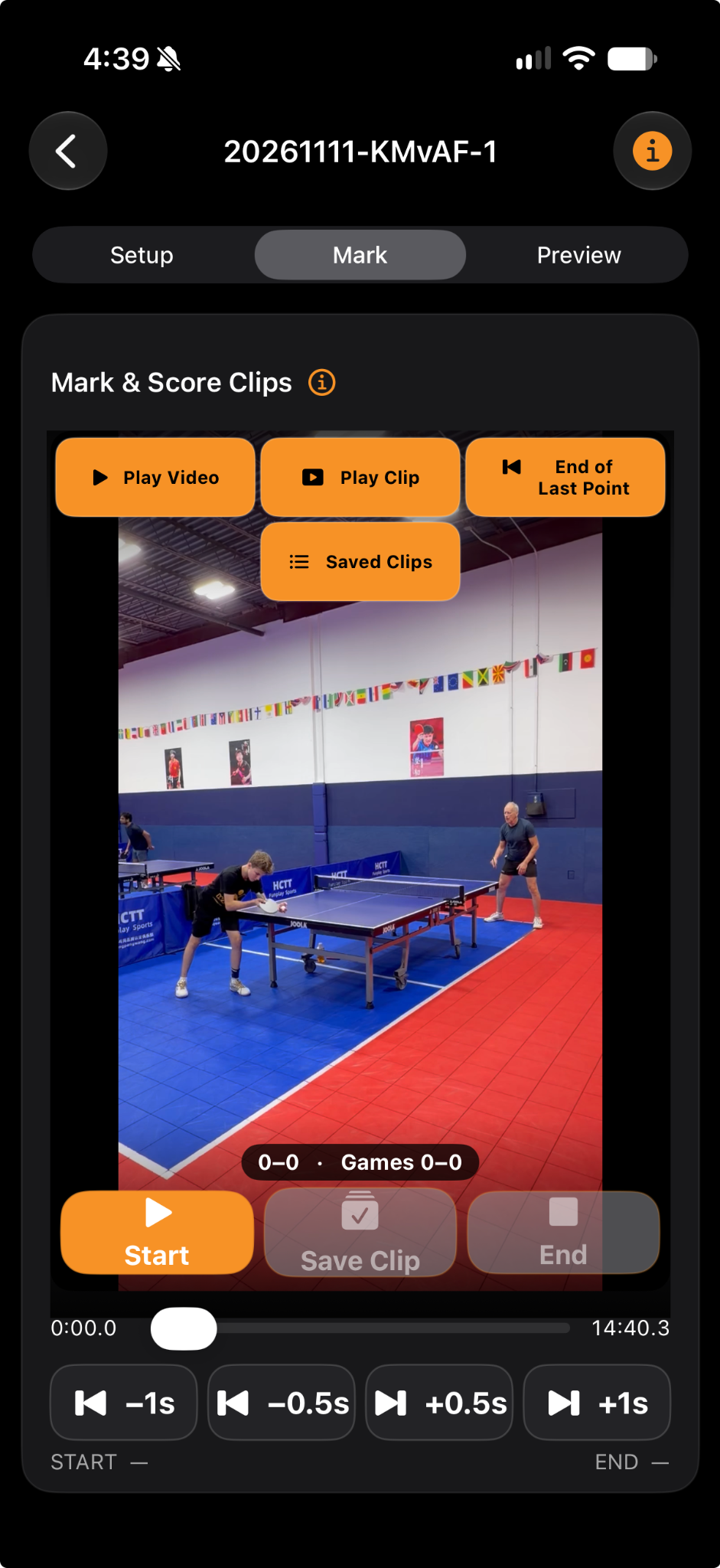
Mark & Score
Mark each rally with simple Start and End controls.
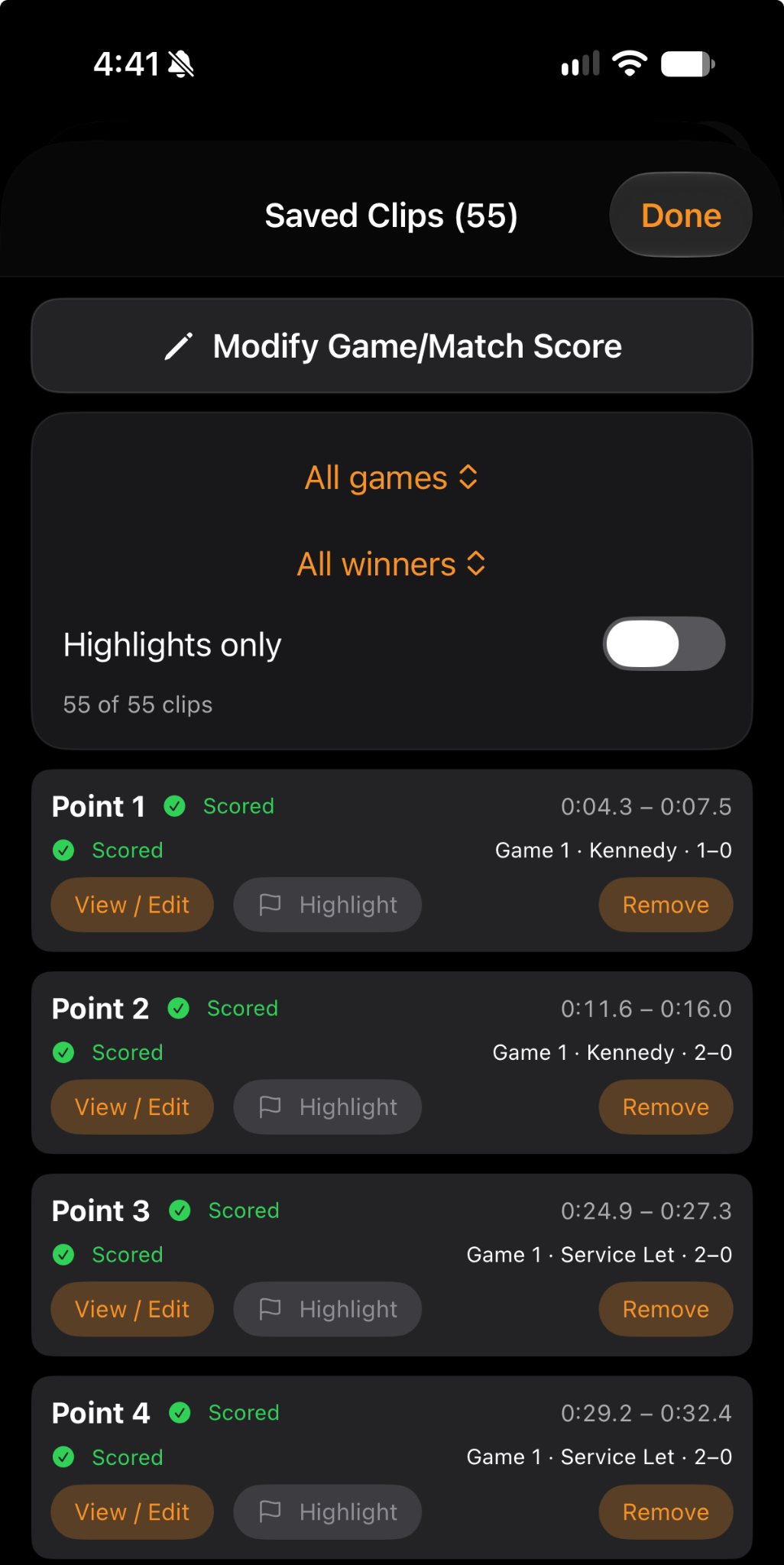
Review Saved Clips
Find, adjust, and flag your best rallies.
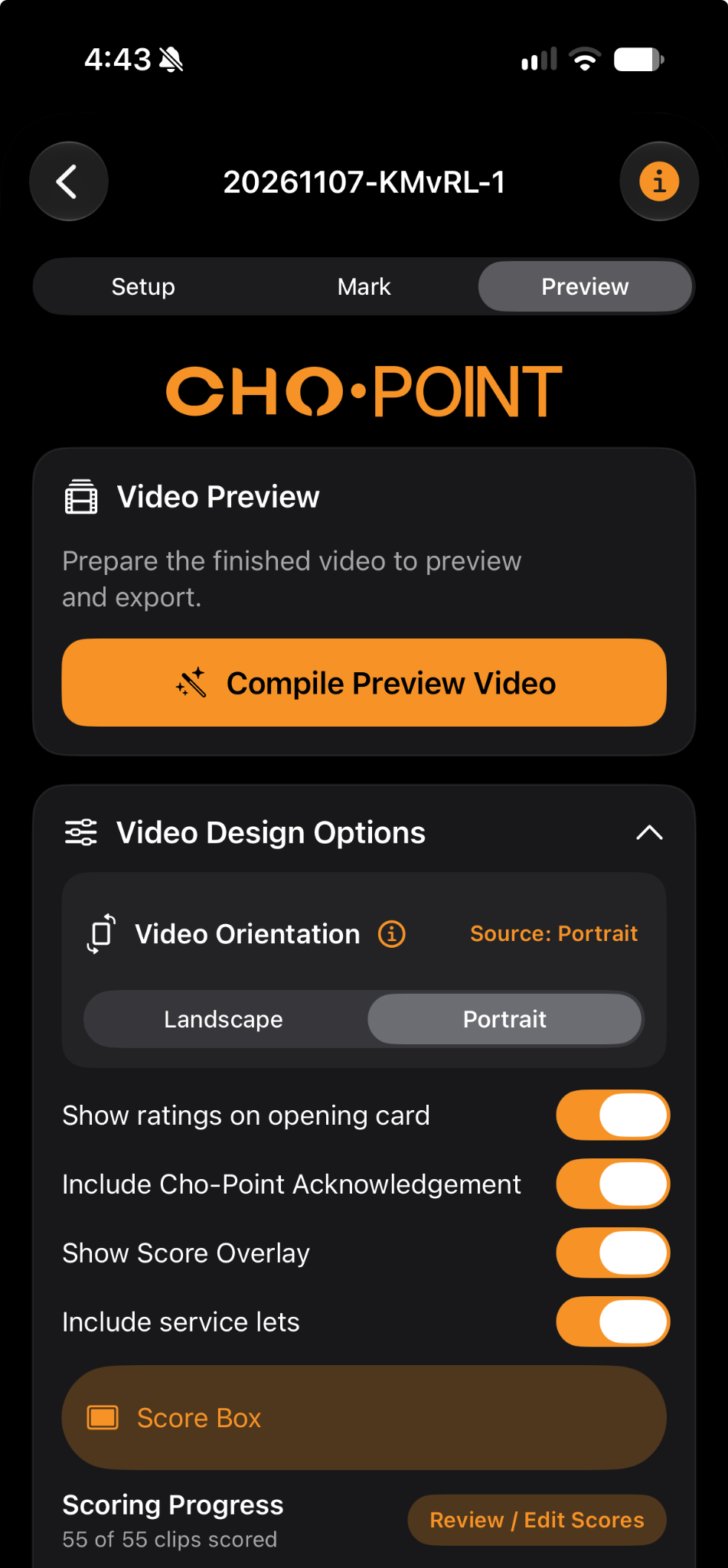
Create a Preview
Set your video options before compilation.
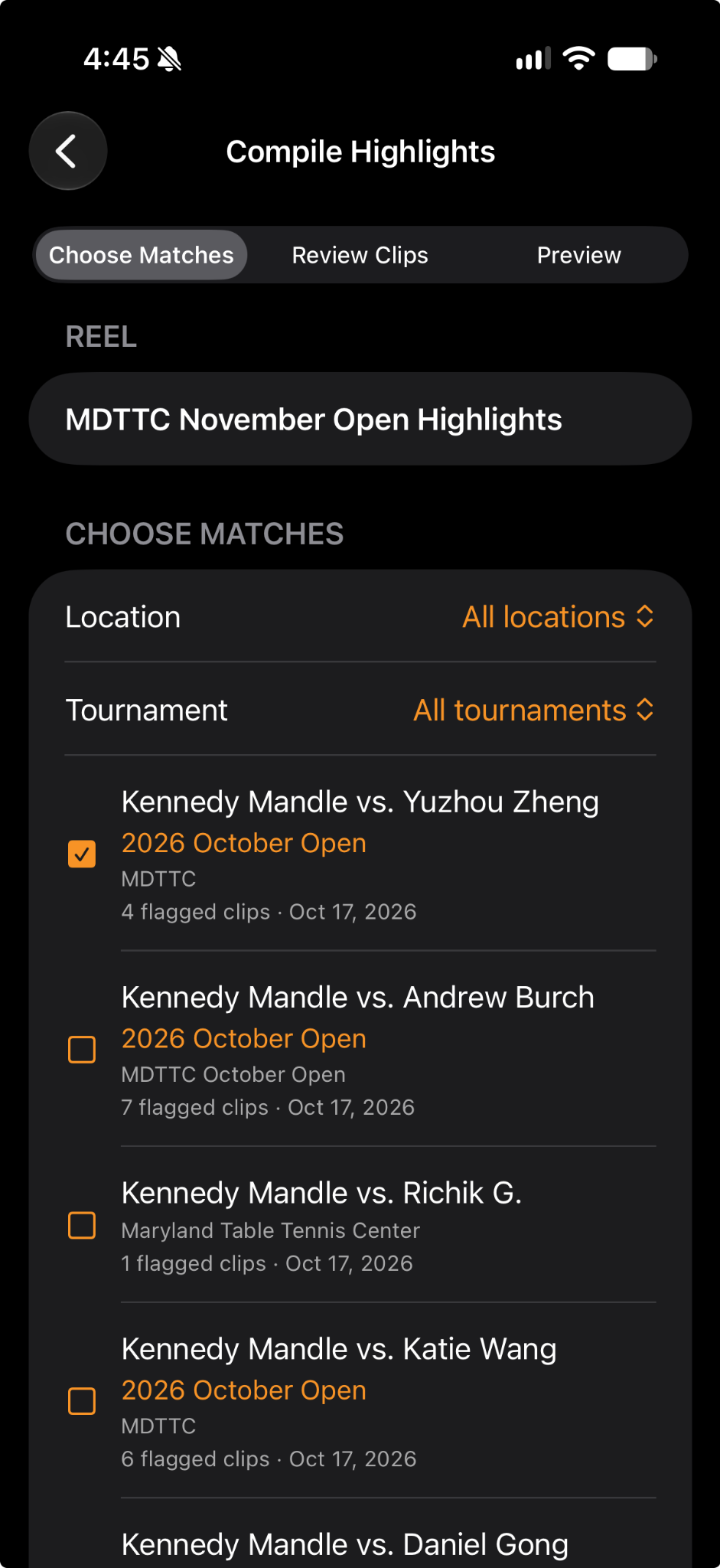
Compile Highlights
Build reels from your saved matches.
How it works.
Go from a long recording to a finished match video in three simple steps.
Import & Mark
Choose your match recording and mark the start and end of the points worth keeping.
Review & Edit
Fine-tune clips, optionally keep score, and arrange highlights for your final video.
Export & Share
Compile and save to Photos or Files. Premium also unlocks in-app social sharing.
Frequently Asked Questions
Answers from the current Cho-Point app, including non-destructive editing, free exports, scoring, and sharing.
What does Cho-Point do?
Turn long table tennis recordings into edited matches and highlight reels. Choose rallies to keep, optionally score them, and save or share your video.
Does it automatically find rallies?
No. You mark each rally’s start and end.
Does Cho-Point change my original video?
Your original recording stays unchanged. Cho-Point creates a separate edited video for Photos or Files.
How many matches can I export for free?
Three unique matches, counted after each first successful save to Photos or Files. Re-exporting an already-counted match does not use another free match. In-app social sharing requires Premium.
What does Premium include?
An automatically renewing annual subscription offers unlimited unique match exports, removal of the footage watermark and in-app social sharing. Cho-Le opening/closing acknowledgments and sponsor placements remain.
Can I clip without scoring?
Choose Clip only during Setup to save rallies without assigning point winners.
Where do I add location and tournament details?
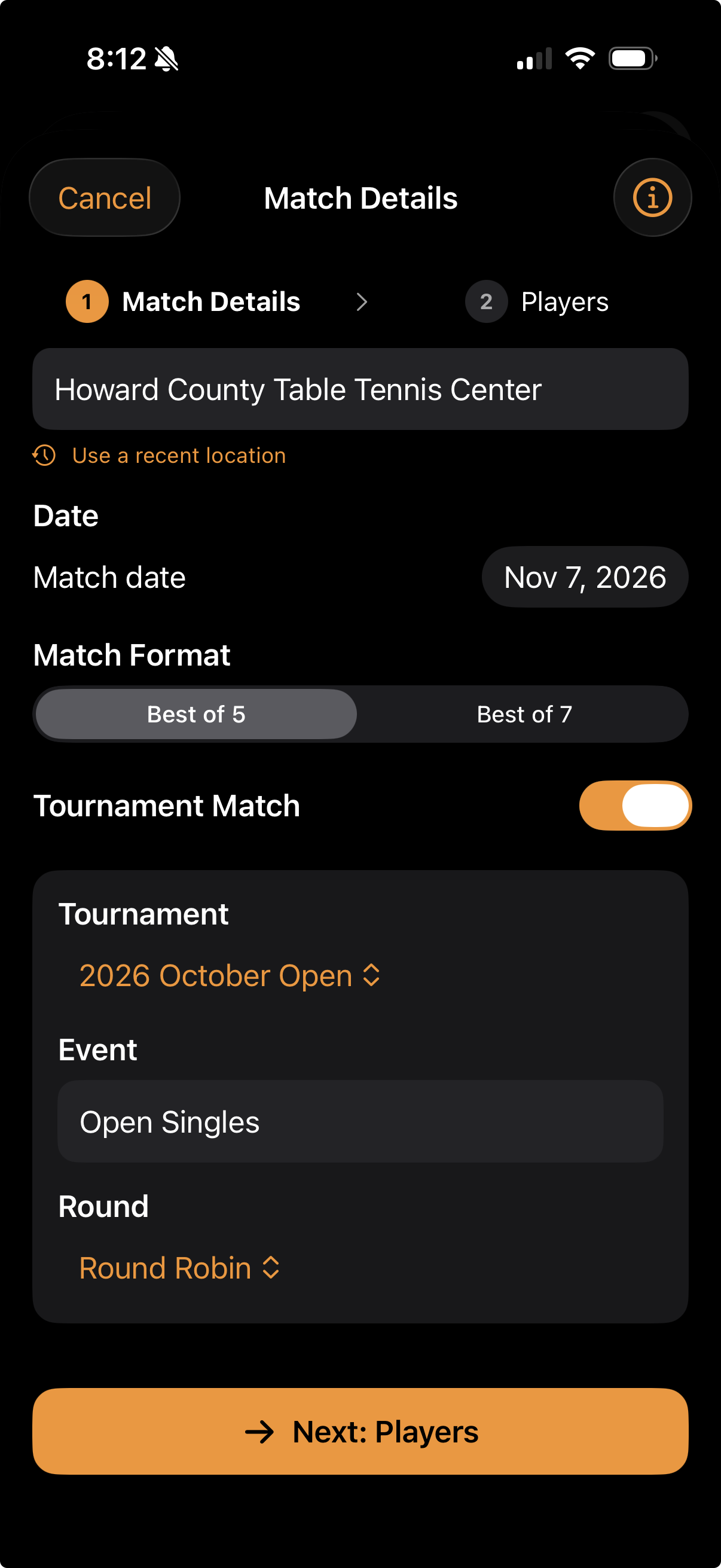
In Setup, enter the location and date. Turn on Tournament Match to include the tournament, event, and round.
What if my recording begins partway through a match?
Use Modify Initial Game Score in Setup to enter completed games and the score where the recording begins.
How do I save a rally?
Tap Start, then End, then Save Clip. If scoring is enabled, choose the point winner and save the score.
What do the ± timing buttons do?
Move through the video in short jumps to reach the next rally faster.
What does End of Last Point do?
Takes you to the end of your last saved point so you can continue marking.
Can I adjust a saved clip?
Open Saved Clips, then View / Edit. Adjust Start and End in Review Clips. Fine Tune Start/End in the scoring window opens the same controls; Done returns you to scoring.
How do I record a service let?
Choose Let — No Point. The score stays unchanged.
What if part of a game is missing?
Open Saved Clips, then Modify Game/Match Score. An unfinished score lets you continue that game; a completed score advances to the next game.
Can I explain a score adjustment?
Add an optional explanation when modifying the score. It appears for the first five seconds of the following game in full-match exports.
How do I find saved rallies?
Tap Saved Clips. Filter by game, point winner, or highlight selection.
How do I select highlights?
Tap Highlight when scoring a point or in Saved Clips.
Can I combine highlights from different matches?
Use Compile Highlights on the Home screen to build a reel from saved matches.
Can I remove a clip?
Tap Remove in Saved Clips. Review the match score afterward if it contained a scored point.
How do I create my finished video?
Open Preview, review Video Design Options, and tap Compile Preview Video. For a highlight reel, use Compile Highlights on Home.
Can I change cards and layout?
Open Video Design Options to review cards, choose portrait or landscape, and adjust overlays and options.
Where do I save or share?
The export window offers Save to Photos, Save to Files, and Premium Share to Social. Use more than one option before tapping Done.
How do I share with an Instagram caption?
With Premium, tap Share to Social, review the caption, then Copy & Continue. Choose Instagram when available and paste the caption into your post.
Does a shorter video free storage automatically?
No. Creating an export does not remove the original recording. Confirm your finished video is saved before deciding which originals to keep.
Can I watch the tutorial again?
Open Quick Tutorial on the main Info page.
What is Cho-Le Table Tennis?
Cho-Le Table Tennis shares Kennedy’s table tennis journey and is the creator of Cho-Point. Follow @ChoLeTableTennis and tag us in your match posts!
Quick Tutorial
Open the 10-page walkthrough from the iPhone app, with real tutorial screenshots and step-by-step controls.
You can return to the walkthrough at any time.
Make every point count.
Less time editing. More time playing. More moments worth sharing.
App Store link coming soonWelcome to Cho-Point
Turn long table tennis recordings into match videos and highlight reels.
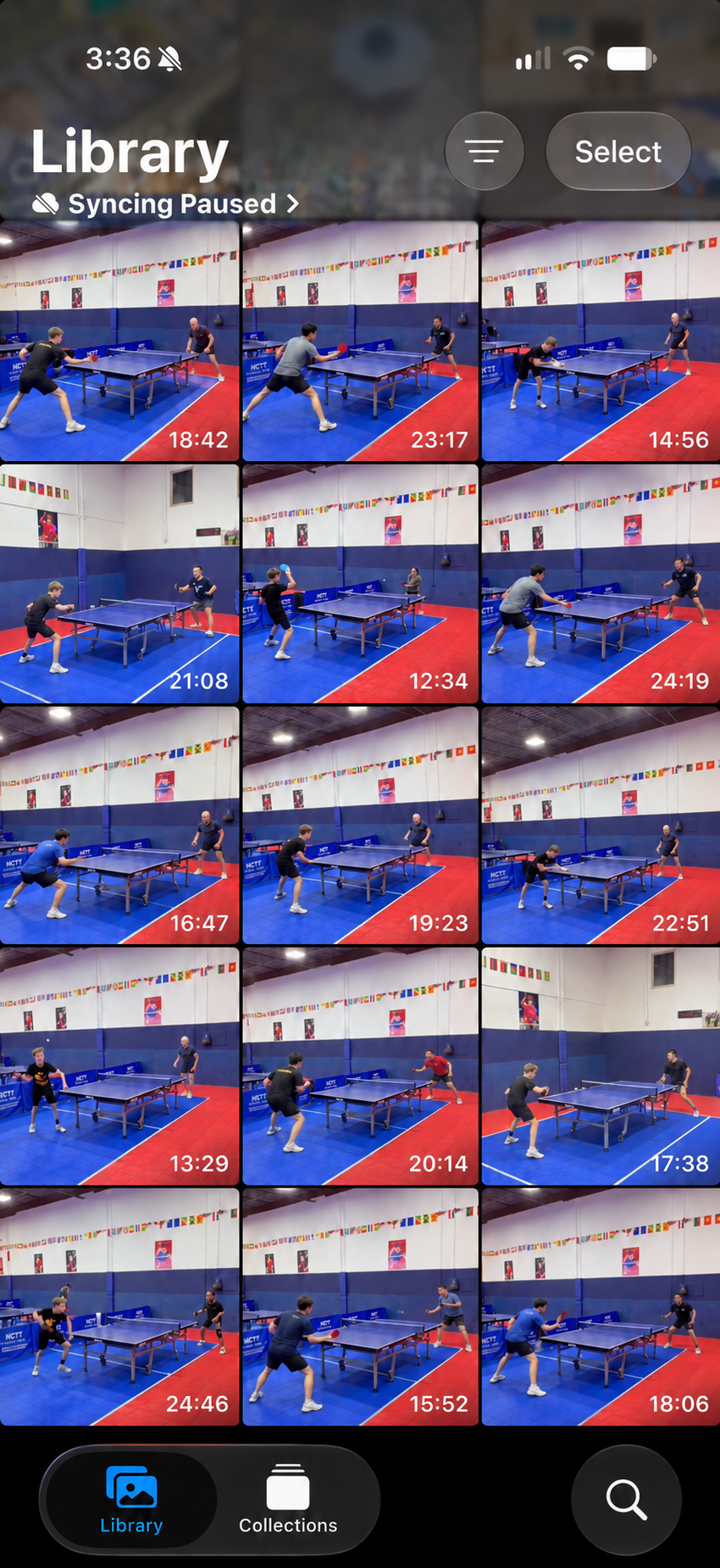
Mark the rallies you want to keep, optionally track the score, and save or share your favorite moments.
Less time editing. More time playing.
Tap the screenshot to view it full size.
Enter Your Match Details
Enter the location, date, and match format.
For a tournament match, include the tournament name, event, and round.
Tap the screenshot to view it full size.
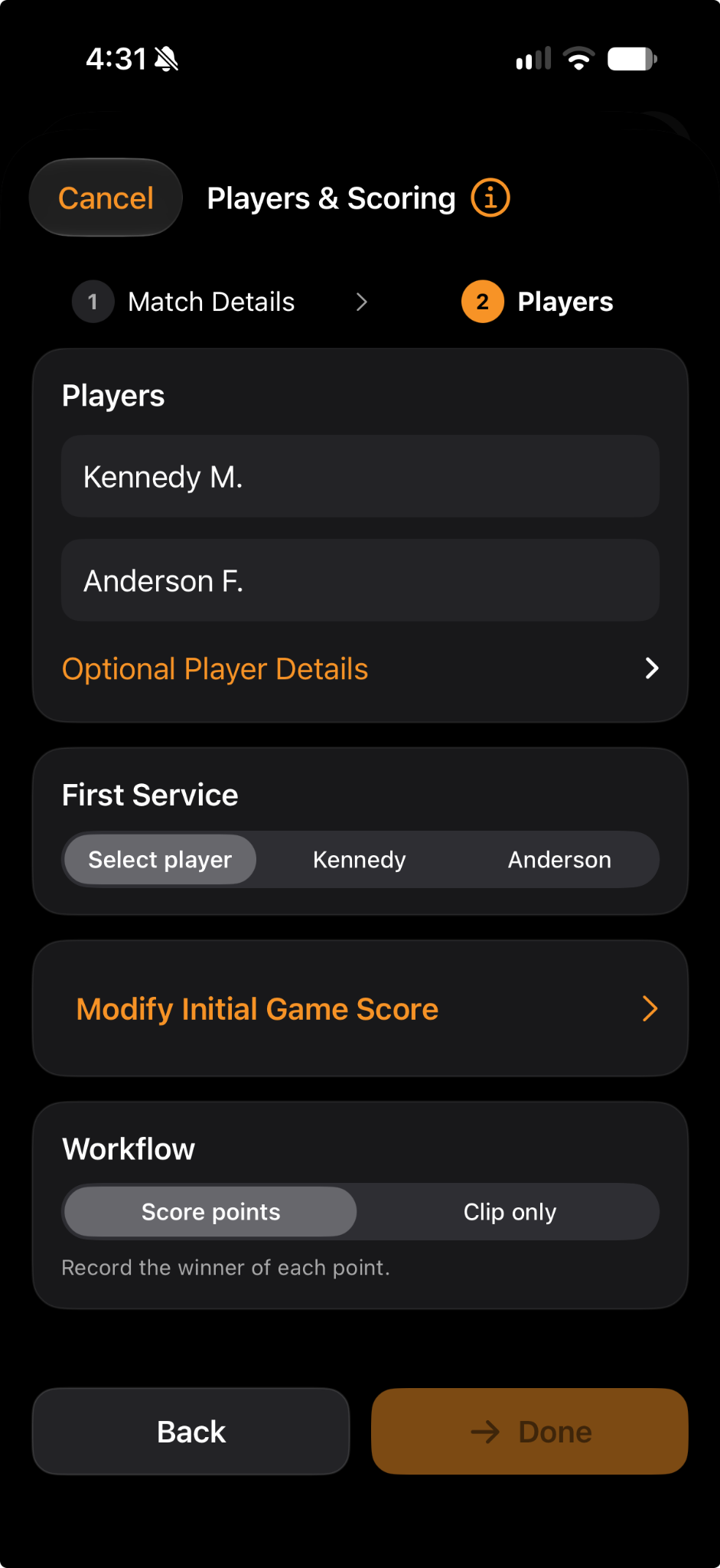
Set Up Your Players
Add both players and, optionally, their club affiliations and USATT ratings. Indicate who served first.
Choose Score points to keep score as you go, or Clip only to create clips without scoring.
Tap the screenshot to view it full size.
Mark a Rally
Tap Start at the beginning of a rally and End afterward—leave room for those “Cho-Le!” celebrations. Tap Save Clip to log the rally.
Use ±1s and ±0.5s to skip through the time between points.
Made a mistake? Tap Clear Clip, then End of Last Point to return to where you left off.
Tap the screenshot to view it full size.
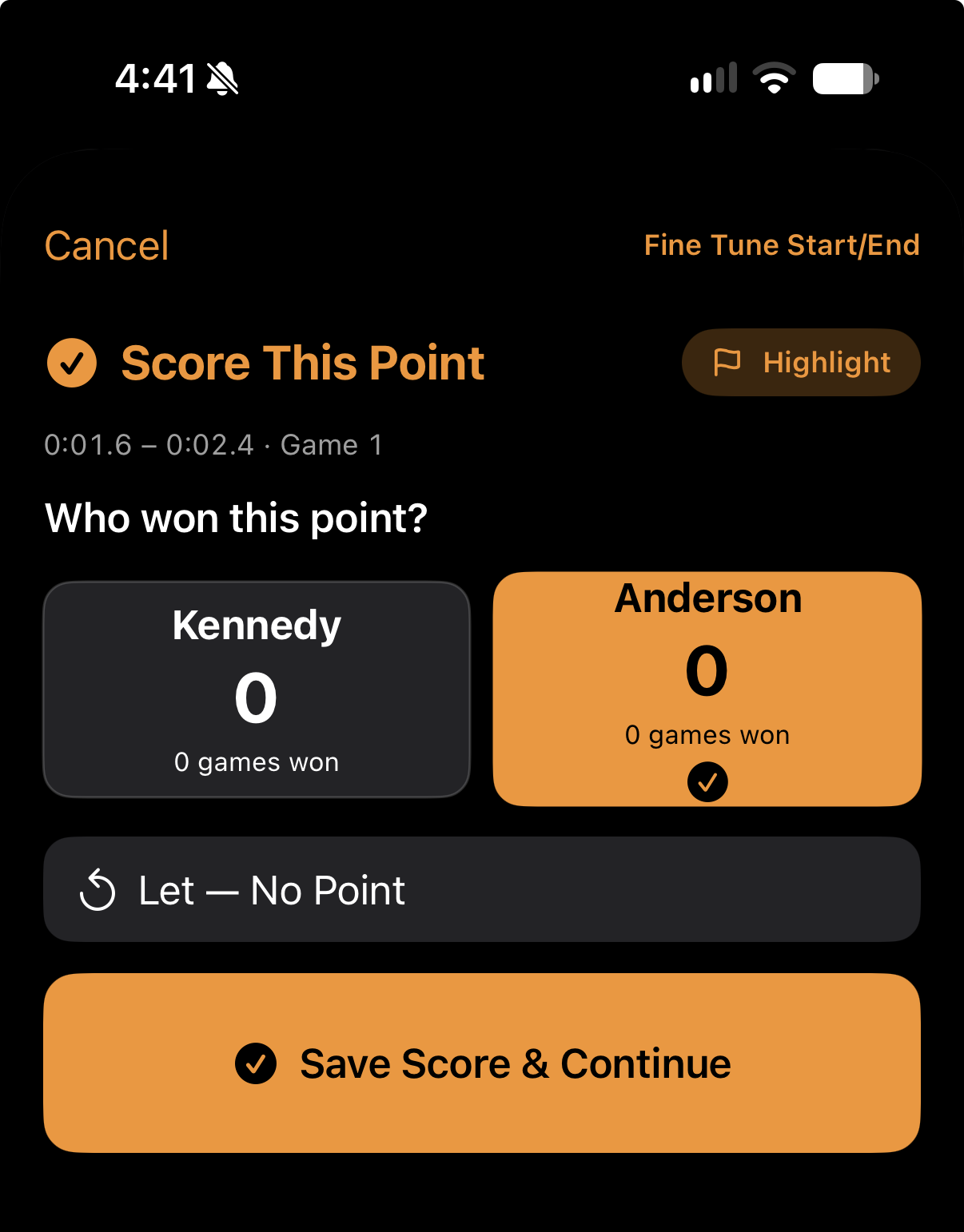
Score the Point
If you chose scoring, tap the player who won the point.
Tap Highlight to make the rally available for highlight reels. Then tap Save Score & Continue to return to marking clips.
Tap the screenshot to view it full size.
Review Saved Clips
Tap Saved Clips to see the rallies you’ve saved.
Choose View / Edit to fine-tune a clip’s start and end. You can also mark highlights or remove clips.
Filter by game, point winner, or highlight selection to find a rally quickly.
Tap the screenshot to view it full size.
Create Your Match Preview
Open Preview, then Video Design Options to choose the video orientation, opening and closing cards, and score box size and placement.
Tap Compile Preview Video to create your edited match.
Tap the screenshot to view it full size.
Compile Highlights
From Home, tap Compile Highlights.
In Choose Matches, find matches by location or tournament. Each match shows its players and date.
In Review Clips, choose and arrange your flagged highlights. Then open Preview, adjust Video Design Options, and tap Compile Preview Video.
Tap the screenshot to view it full size.
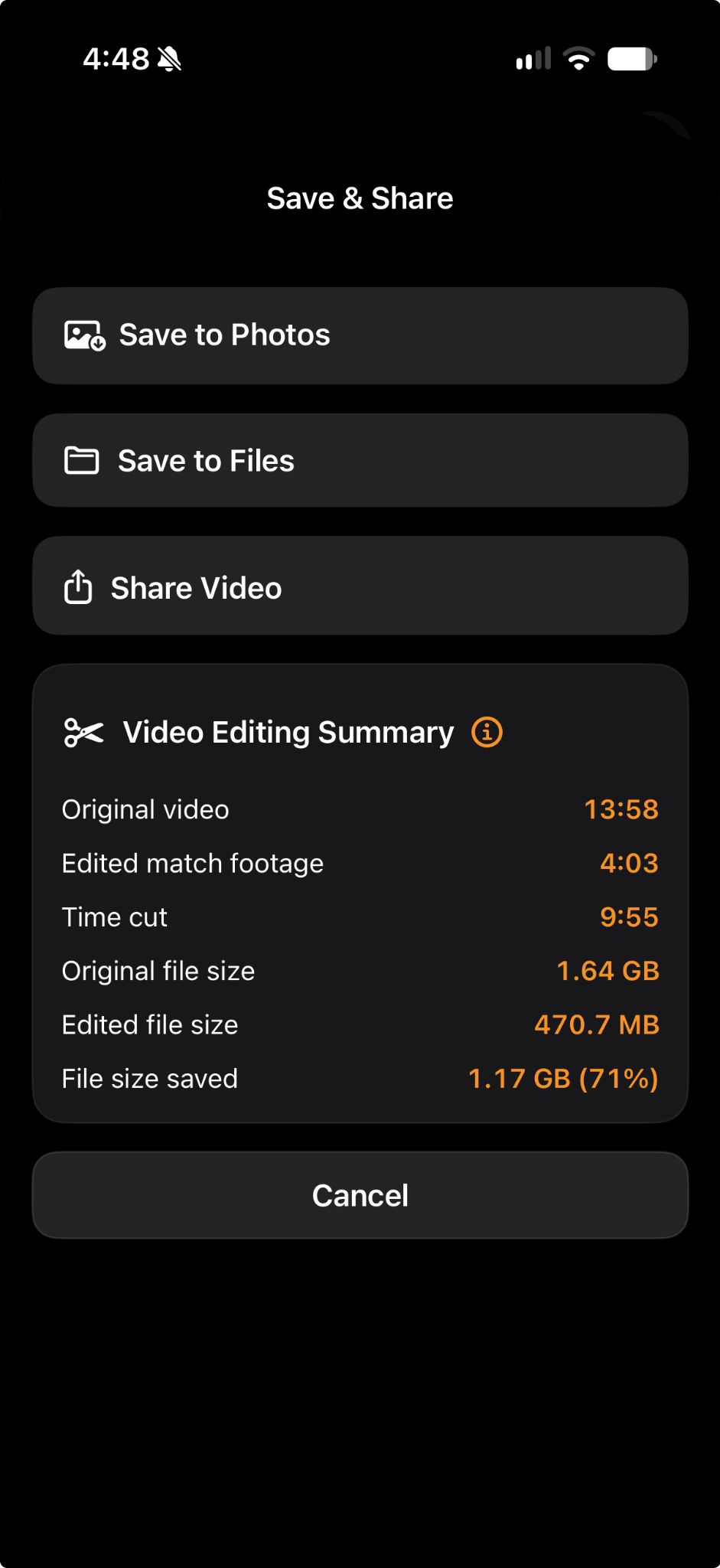
Save and Share
Watch your compiled video. When you’re happy with it, save it to Photos or Files, or choose Premium Share to Social.
For Instagram, review your suggested caption and tap Copy & Continue. Choose Instagram when available, then paste the caption into your post.
You can save to Photos and Files before tapping Done. In-app social sharing requires Premium.
Tap the screenshot to view it full size.
Made for moments worth sharing
Cho-Point is a product of Cho-Le Table Tennis, created to document and share Kennedy’s table tennis journey—without filling his dad’s phone and cloud storage with hours of footage.
Tag @ChoLeTableTennis in your match posts!
 Follow @ChoLeTableTennis